
Growing studios rarely work alone. You may have a second shooter, an editor, a gallery assistant, or a partner in another city. If everyone uses the same login, you lose accountability and risk unwanted changes.
Ftens includes collaborators: email invites, access limited to a project or a single gallery, and granular permissions to view, upload, edit, or manage sales.
Availability: this feature is enterprise-only right now. It is not self-serve on standard plans. If you need it for your studio or agency, contact the Ftens team and we will enable it with you.
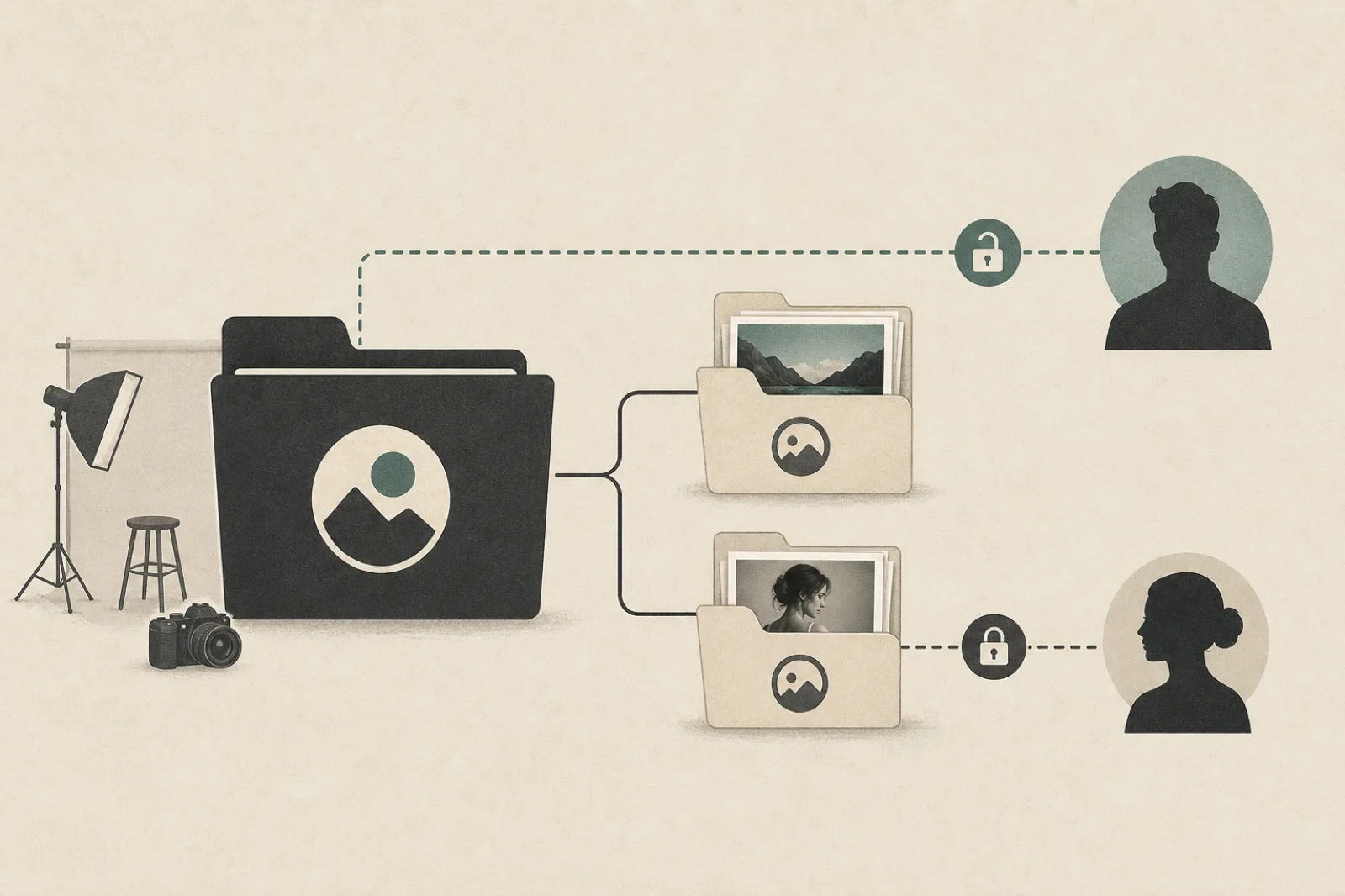
Why sharing the photographer account fails
Sharing one username and password feels easy until:
- You cannot tell who deleted a photo
- A helper can see every session you own
- You rotate the password and break three people’s workflows
- Billing and plan access become informal and risky
The professional approach is to invite people with seats and permissions, not lend credentials.
What you can do with Team in Ftens
From Dashboard → Team (and when configuring a project):
- Invite a collaborator by email
- Choose the scope: an entire project or one gallery
- Set permissions (or a preset such as viewer / editor)
- They accept the invite and only see what you allowed
Shared projects appear separately in the sidebar so collaborators can distinguish their own work from what you shared.
Scope: project vs gallery
| Scope | Best for | Example |
|---|---|---|
| Project | A stable team on a brand or season | Editor with access to every gallery in “Weddings 2026” |
| Gallery | One-off help | Second shooter only on “Ana & Luis — reception” |
For single-gallery invites, project-level permissions (create galleries, edit project settings) are not offered — access stays scoped to that gallery.
Permissions that matter day to day
Permissions are grouped into three practical blocks:
- Project: view project, edit settings, create galleries
- Gallery & media: view, edit metadata, upload, edit/delete photos, delete gallery
- Sales: view or manage gallery sales mode
You can give an editor upload + photo edit without letting them delete the whole project, or give a commercial partner sales view without touching the archive.
Seats and limits
Each person (email) uses one seat, even if they join multiple galleries. Pending invites also count until they are accepted or expire. Your plan (or active entitlements) sets the seat limit.
If you hit the limit, the product tells you when inviting — there is no backdoor access.
Real studio workflows
Second shooter on a wedding
Invite with gallery scope and view + upload. The next day they can upload their media without seeing other sessions for that client — or other clients.
External editor
Project scope with view + upload + photo edit. You keep gallery deletion and sensitive settings.
Delivery assistant
Gallery view plus, if needed, sales or contribution-related permissions. Useful when you want to scale deliveries without duplicating owner accounts.
Security best practices
- Invite the collaborator’s work email, not a shared inbox
- Grant the minimum permission required for the job
- Revoke access when the job ends
- Never share the owner login — billing and ownership must stay clear
- Pair collaborators with private galleries and online delivery for end clients
How to get started
- Contact the Ftens team to request collaborators (enterprise account)
- Once enabled, open Team or the project settings
- Click Invite collaborator, choose project or gallery, and pick a permission preset
- Send the invite and wait for acceptance at
/invite/...
You can reach us from the dashboard (support) or via the contact channels on Ftens. Without that activation, Team will not be available on your account.
FAQ
Is it available on every plan?
No. Enterprise-only for now. If you want it, contact the Ftens team so we can review and enable it on your account.
Does the collaborator pay for their own plan?
They do not own your billing. They work on resources you share, within your seat quota.
Can they see all my galleries?
Only if you grant project scope (or multiple invites). With gallery scope they see that gallery only.
What if an invite is declined or expires?
The pending seat is released according to invite status — no active access remains.
Scale the team without diluting control: collaborators in Ftens are built for real studios, not password sharing.